
If you ever wondered, what roles you need to specify for which user to make the Data Gateway appear in their connections, this post is for you. Please find below a quick overview, over which minimum permissions are required in order to see the associated Data Gateway in both Power Apps and Power Automate:
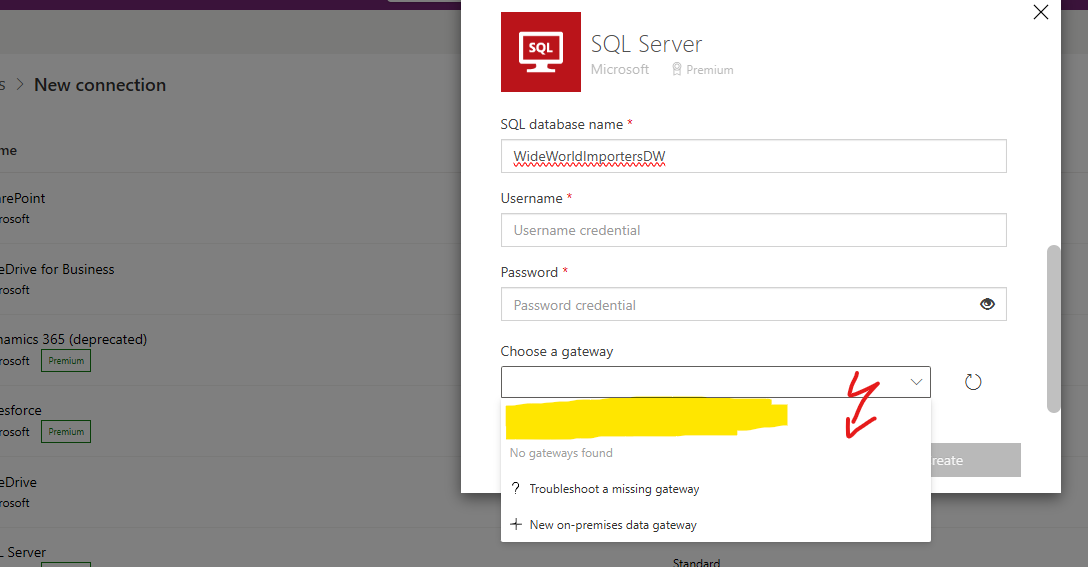
Standard / Premium Connectors and Dataverse Dataflows
To see Data Gateways in the dropdown list of capable standard and premium connectors, as well as in Dataverse Dataflows you´ll need to get assigned at least “Connection Creator” role in the associated Gateway. You can do this in the Power Platform admin center under menu “Data (preview)” for Data Gateways you have Admin privileges assigned [Home – Power Platform admin center (microsoft.com)] or via the share option within the Gateway tab in make.powerapps.com.

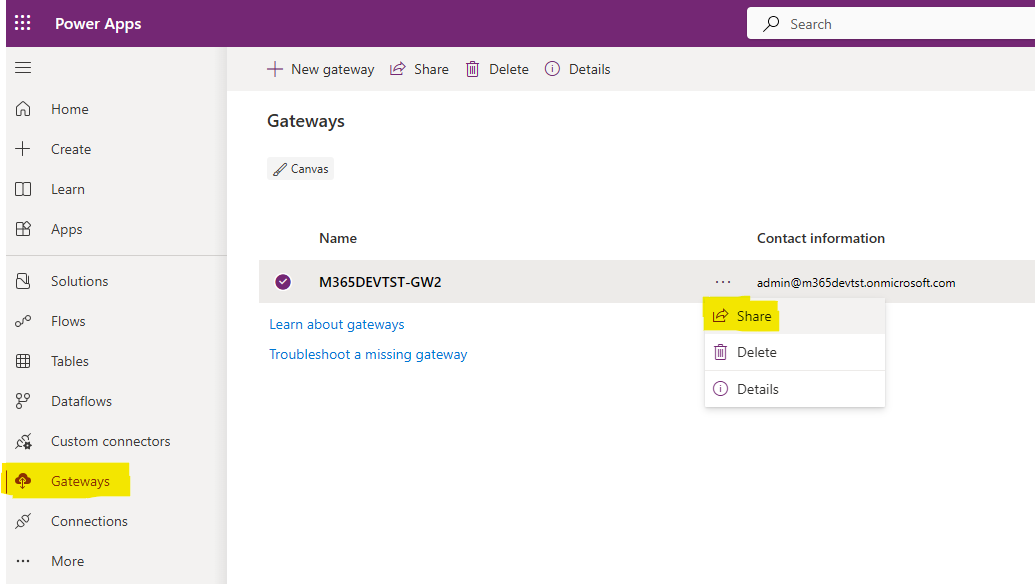
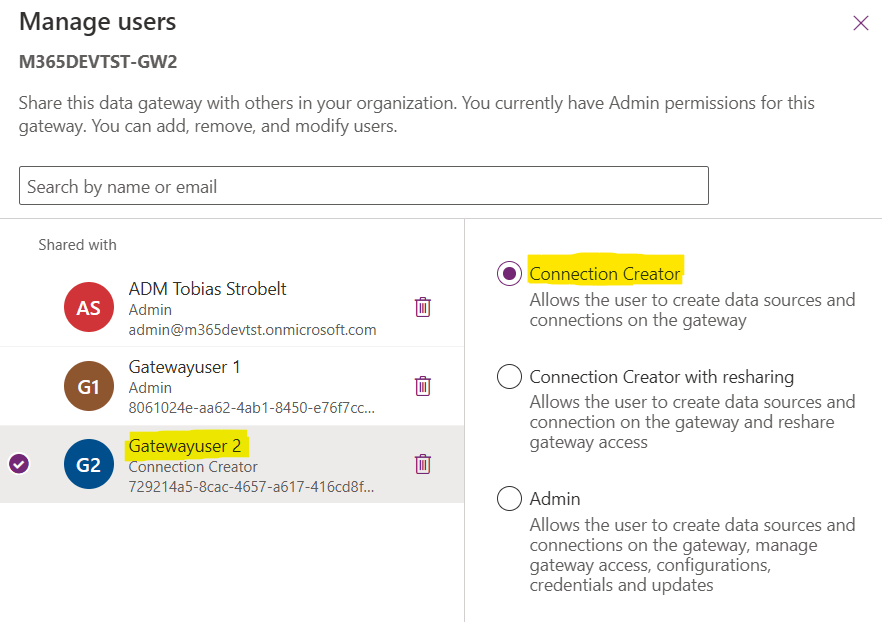
Notice, that depending if you setup the permissions over the Gateway tab through sharing, or over the Admin Center, naming of roles can differ:
| Sharing over Gateway tab in powerapps.com | Sharing over Power Platform Admin Center |
| Admin | Admin |
| Can use | Connection Creator |
| Can use + share | Connection Creator with resharing |
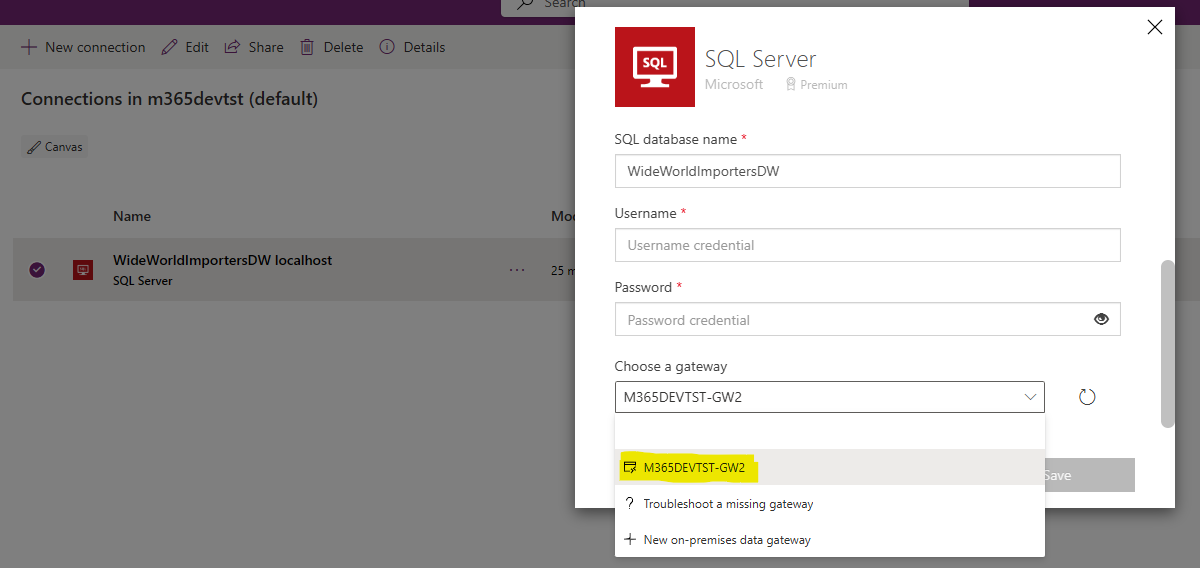
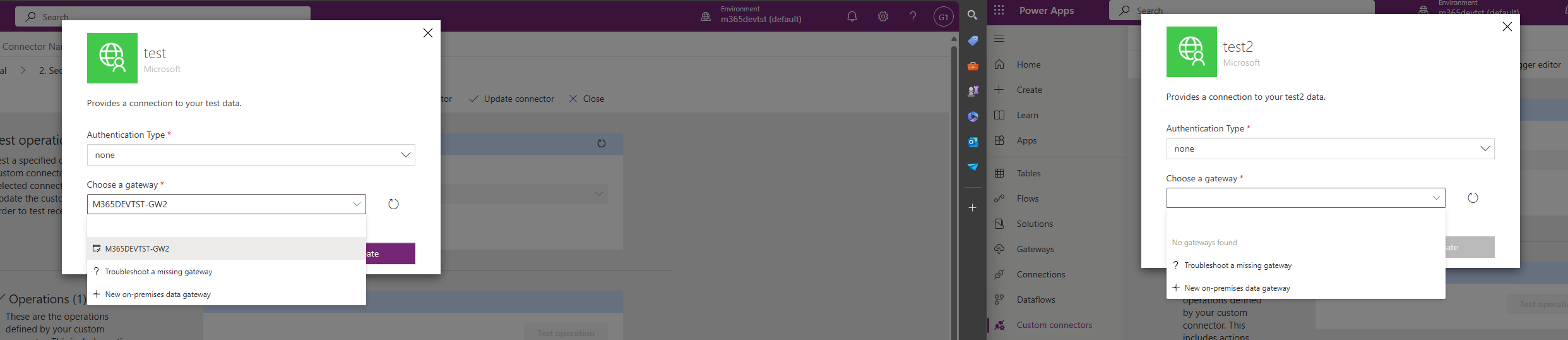
After that, associated users can choose the Data Gateway in capable connections:
Custom Connector
However, the role permission for “Connection Creator” does not include capabilities for Custom Connectors! In order to make the Gateway usable for Custom Connector connections, you´ll need to assign at least “Admin” privileges for the user on the Gateway or share the connection created by an admin accordingly:
Summary Power Apps / Automate
- For capable standard / premium connectors and Dataverse Dataflows to create connections with Data Gateways assigned, you need at least “Connection Creator” priviliges.
- For Custom Connector connections over Data Gateway you need “Admin” priviliges to create connections.
Independent of creation, sharing of created connections depends on the connection type and usage scenarios.
[https://learn.microsoft.com/en-us/power-apps/maker/canvas-apps/gateway-management]
Oh and a typical hint to conclude:
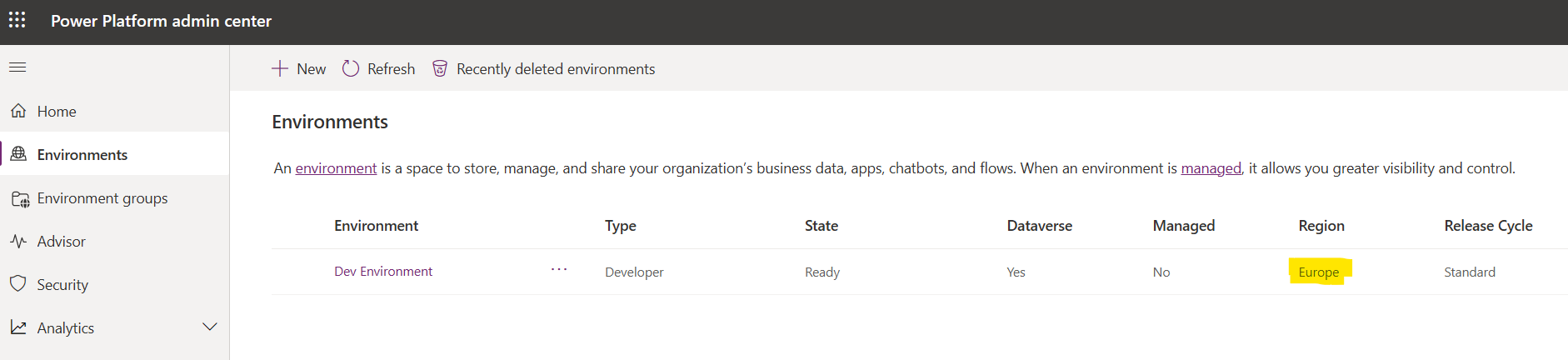
If you wonder why the Data Gateway still doesn´t show up, ensure your Data Gateway is running under the same region as your Environment. You can verify this under the Power Platform Admin Center, where you see the region of your Environment, as well as the Data (Preview) tab which contains the Data Gateways in chosen region.

[Set the datacenter region for the on-premises data gateway | Microsoft Learn]
 MSFTNERDS
Leave a comment