
Challenge
When exporting tables/entities from Dataverse for analytics you had quite some options in the past. However, the usage of “Export to Data Lake” is officially deprecated since November 1st 2024 and customers using this export method should stick to the official transition guide at latest by end of February 2025 to replace their solution with any of the following options:
- Azure Synapse Link
+ CSV or delta parquet export options
+ Data updated within ~5min
– Delta parquet requires (costly) Synapse Analytics Spark pool
– CSV file transformation to analytics ready tables (incl. medallion architecture) requires engineering through SQL or Notebook
– Metadata handling requires CDM model interpretation in transformation logic - Link to Fabric (or as I call it “Fabric Link”)
+ Analytics ready tables through automatic delta parquet and Lakehouse
+ Unified compute through Fabric SKU
+ Metadata handled by Fabric Link routines
– Dataverse storage required
– Data updated within ~60min
If your business/analytics process requires new data from some/many Dataverse tables to be available in under 60min – lets say 15min 😉 – you have to stick to Azure Synapse Link as your only option by now. Unfortunately this might require redesign in your transformation layer to match changes in CDM folder structure if you haven´t used incremental export in your existing Export to Data Lake solution. Microsoft offers solutions on their official Dynamics 365 FastTrack GitHub repository, however it requires some adoption from Synapse Analytics Pipelines and SQL serverless towards Fabric. To overcome this challenge, I have prepared the following scripts and guideline template combining the best of both solutions, Fabric Link and Azure Synapse Link to got you covered:
Architecture
This template consists of couple of Fabric items with a goal of achieving Lakehouse delta parquet tables with current data in under 15min update frequency. It is based on non-time-critical tables provisioned through Fabric Link in ~60min update time and time-critical tables provided through Azure Synapse Link and transformed into delta parquet tables in ~15min update frequency. To achieve second approach, the pipeline identifying changed data from ADLS Gen2 data lake storage uses a watermark table to store/receive the last successfully processed CDM folder and re-processes this + new data on each run. Both created/merged delta parquet tables in LH1 and LH2 are created with Change Data Feed (CDF) enabled for further simplified merge possibilities towards Silver/Gold layer.
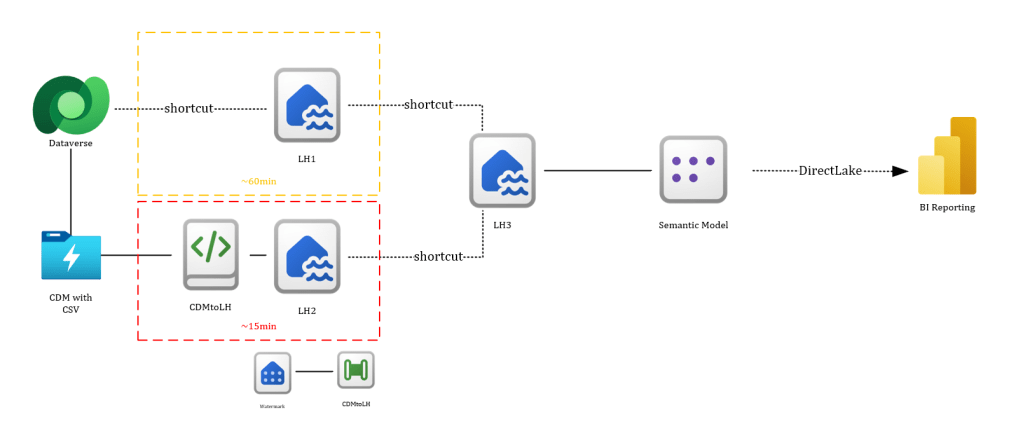

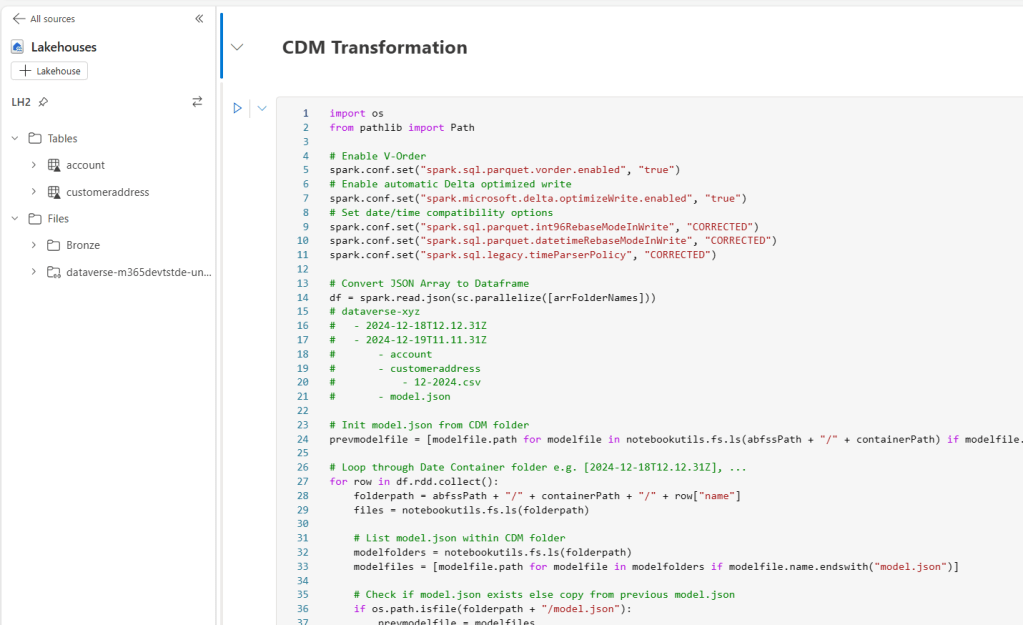
The following items are included in this template:
- 1x Warehouse
- watermark table
- usp_write_watermark
- 3x Lakehouses
- LH1 containing delta parquet from Fabric Link (can exist in different workspace)
- LH2 containing shortcut to ADLS Gen2 data lake storage from Azure Synapse Link
- LH3 containing shortcuts to LH1+LH2 tables
- 2x Data Pipelines
- SparkSessionKeepAlive
- CDMtoLh
- 4x Notebooks
- SparkSessionKeepAlive
- CDMtoLh
- InitCDMtoLh
- MaintenanceLh
- 1x Spark Environment
- CDMtoLh
Prerequisites
The following prerequisites must be present to use this template:
- Fabric enabled workspace with contributor permission
- ADLS Gen2 data lake storage account for storing CSV files through Azure Synapse Link
- Azure Synapse Link initial setup completed
- Fabric Link initial setup completed
Installation and Setup
- Download the git repo template files to your computer
- Open Fabric workspace and import the “InstallCDMtoLh” Notebook into your workspace
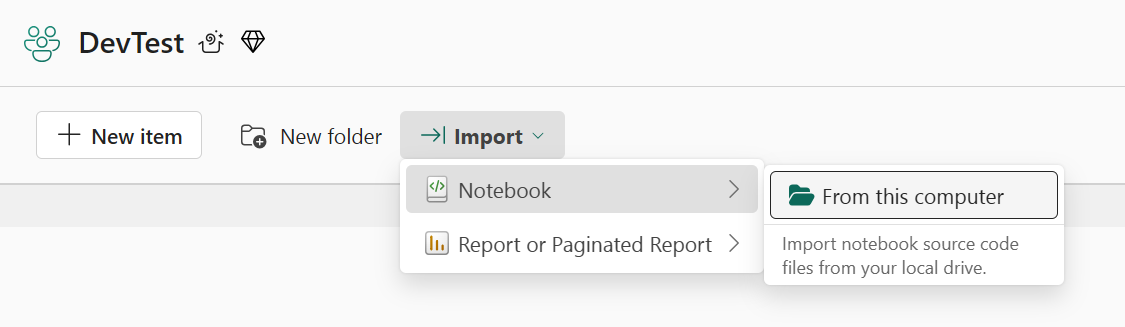
- Open “InstallCDMtoLh” Notebook, connect to Spark Session and “Run all”
- Open “WatermarkWarehouse” Warehouse in your workspace and run the following SQL statement in a new SQL query:
-- Create usp for watermark update
CREATE PROCEDURE usp_write_watermark @LastFolderName varchar(255) AS
BEGIN
  UPDATE watermarktable
  SET [WatermarkValue] = @LastFolderName
END;
GO;
-- create watermark table
CREATE TABLE watermarktable ( WatermarkValue VARCHAR(255) );
GO;
-- Insert empty watermark record
INSERT INTO watermarktable ([WatermarkValue]) VALUES ( '' );
GO;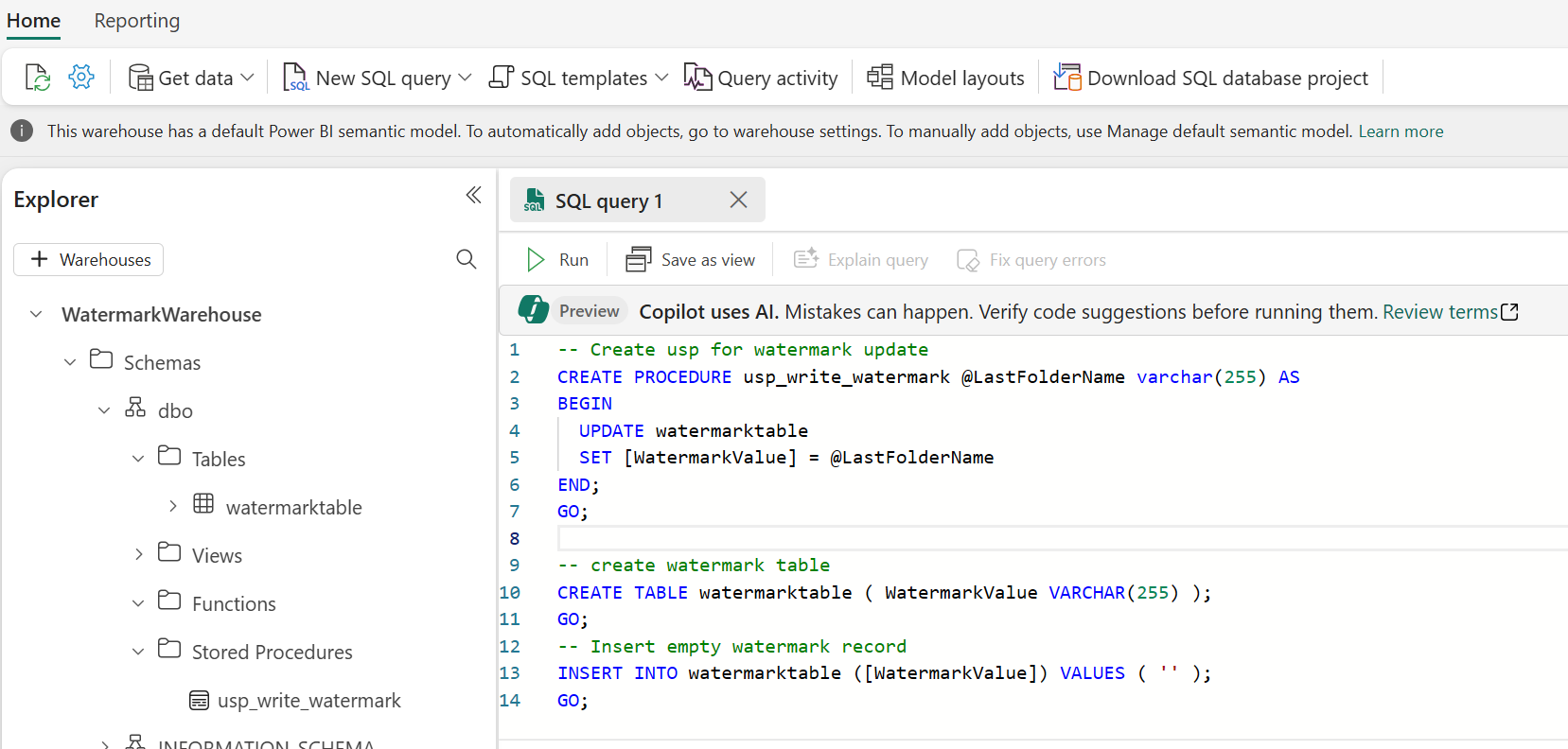
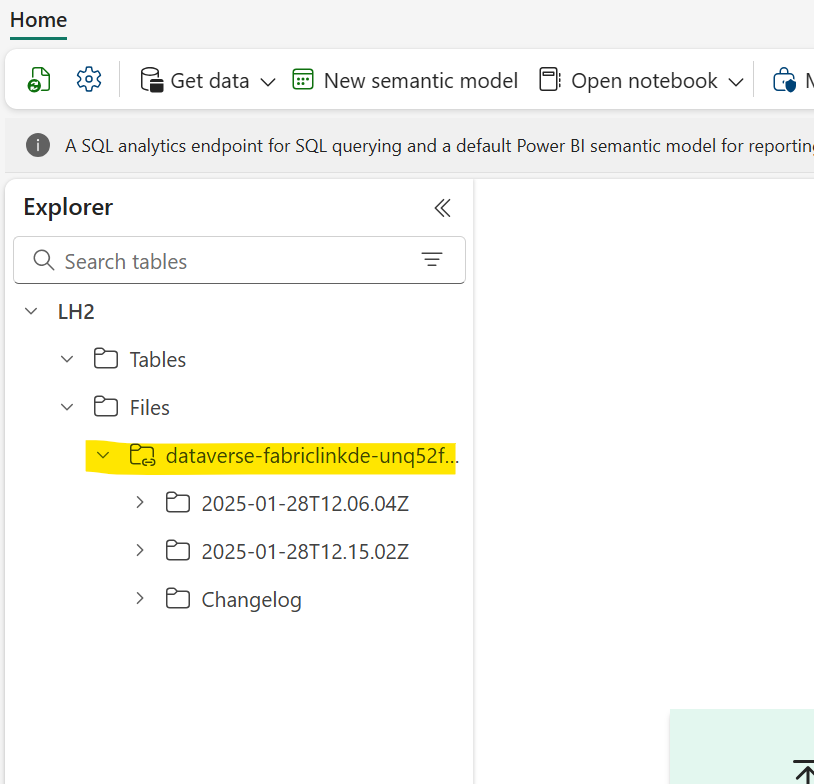
- Open LH2 and create a File Shortcut to ADLS Gen2 storage account containig CSV export from Synapse Link
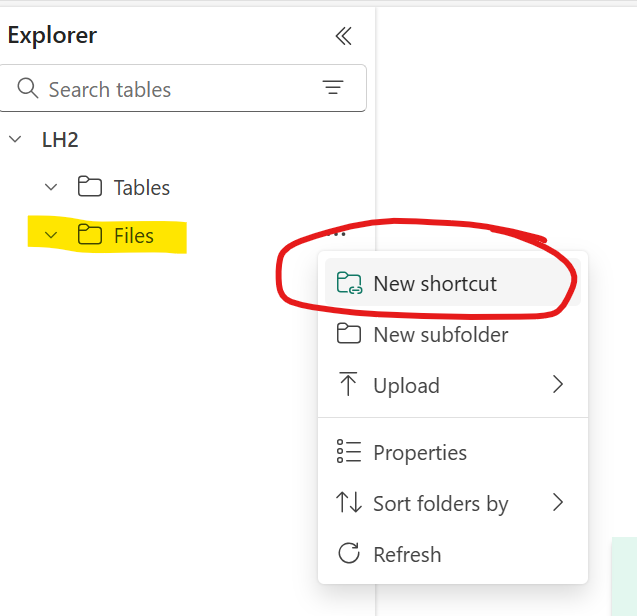
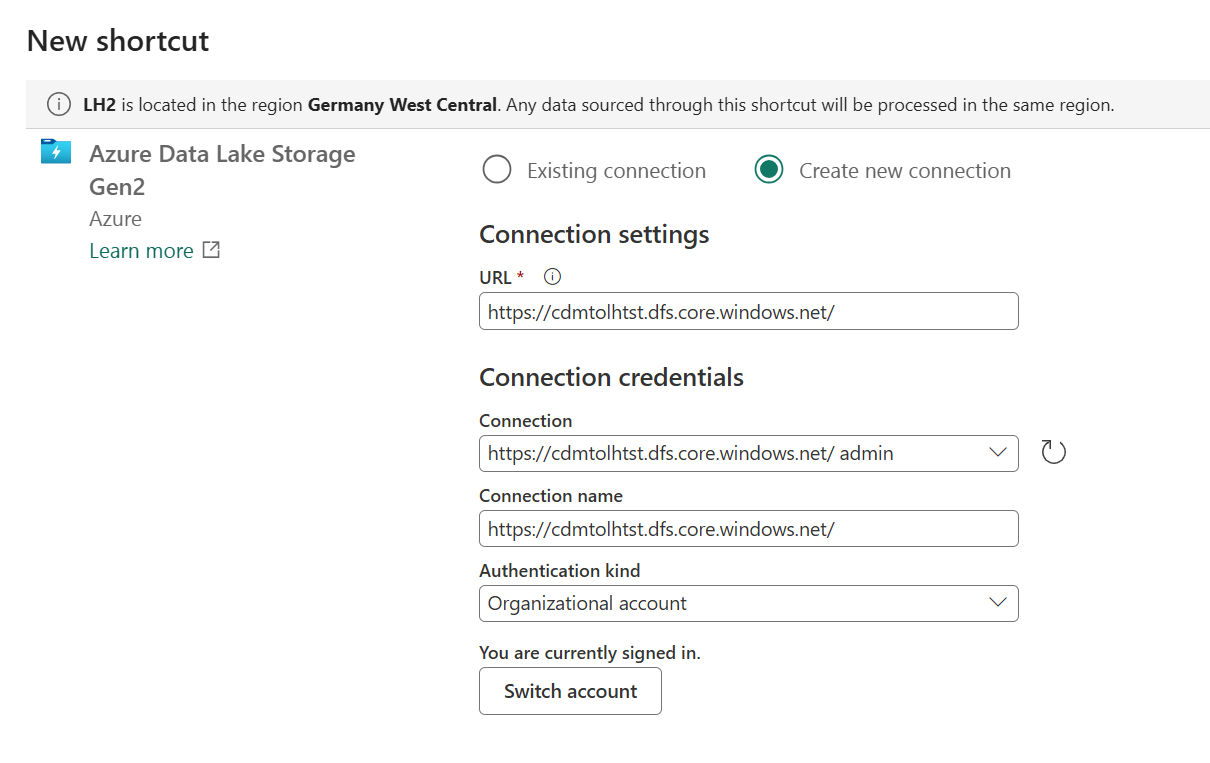
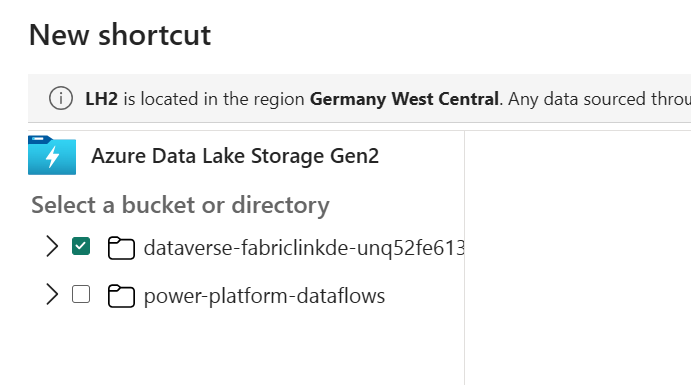
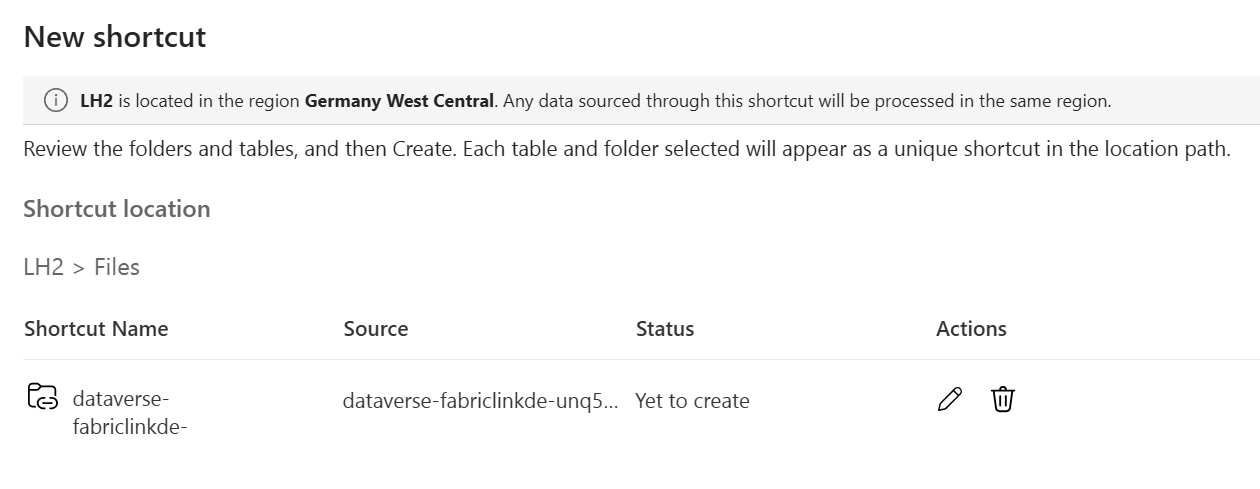
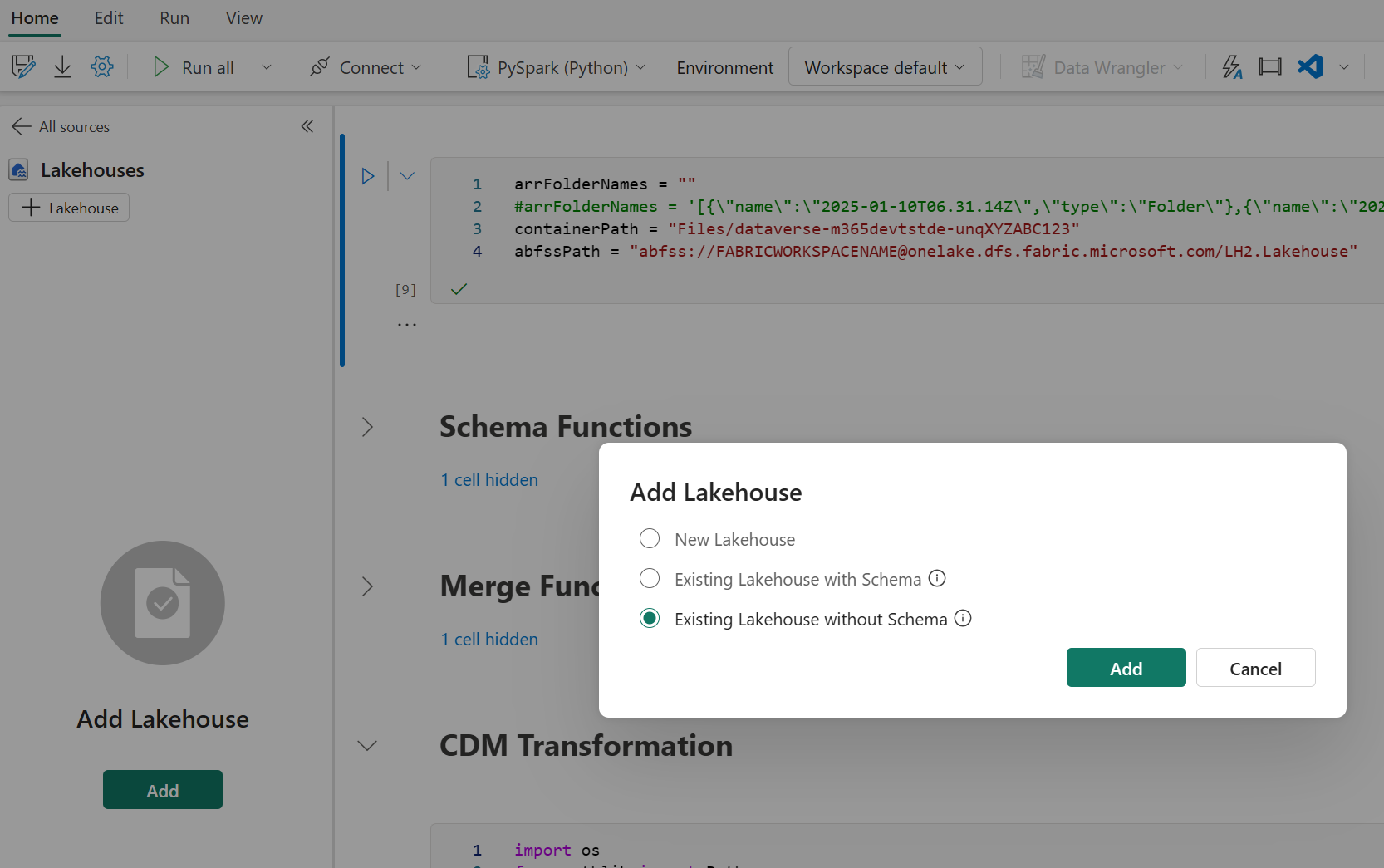
- Open “CDMtoLh” Notebook and attach LH2 as default Lakehouse
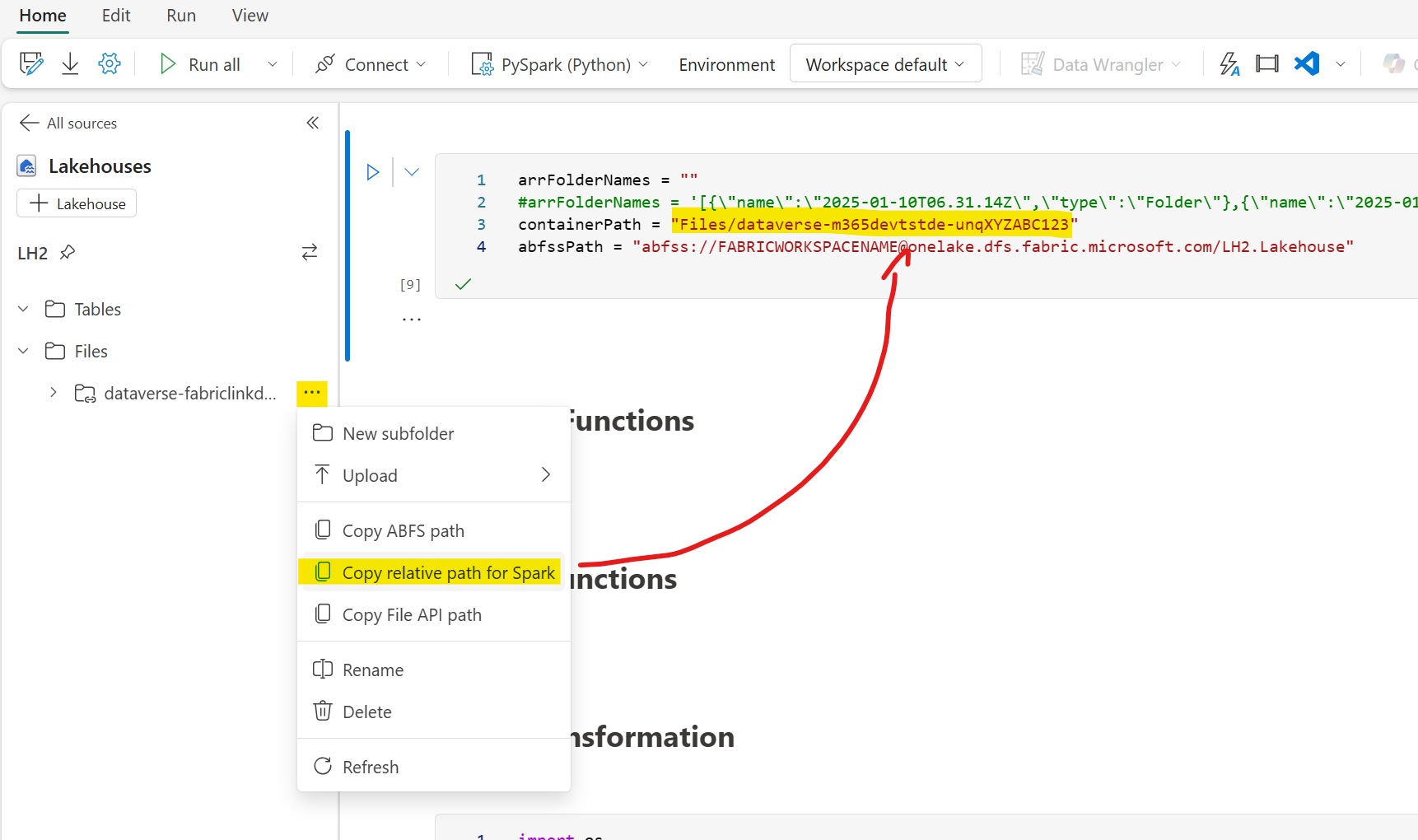
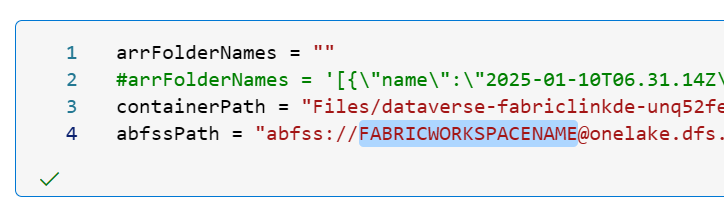
- In the parameter cell set containerPath to your Dataverse ADLS Gen2 relative Path for Spark and change FABRICWORKSPACENAME to your Fabric Workspace name
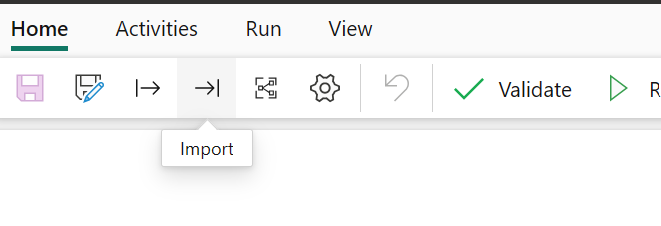
- Open pipeline “SparkSessionKeepAlive”, import pipeline package “Pipeline.SparkSessionKeepAlive.zip” and choose “use this Template”
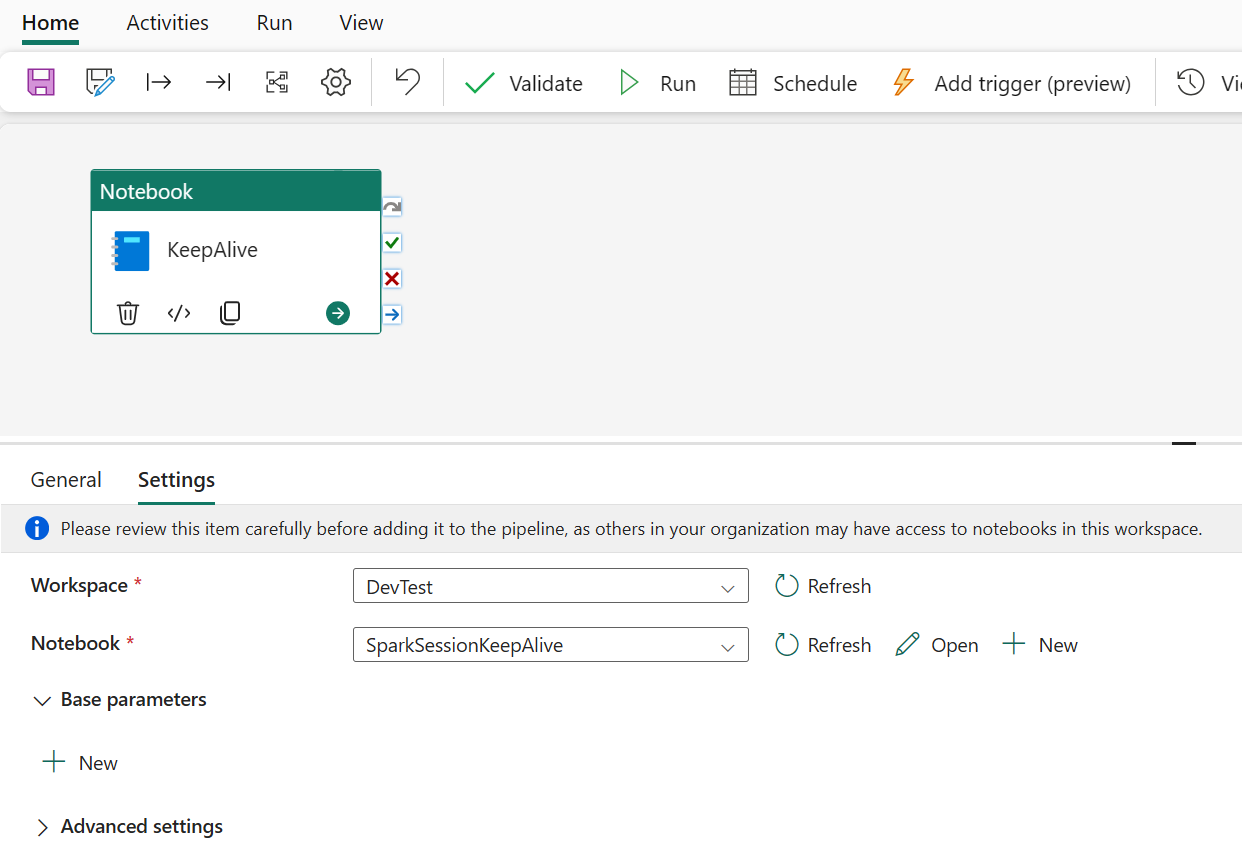
- Verify that the proper “SparkSessionKeepAlive” Notebook is selected in the Notebook Activity, reassign if required
- Save pipeline and open pipeline “CDMtoLh”. Import pipeline package “Pipeline.CDMtoLh.zip”
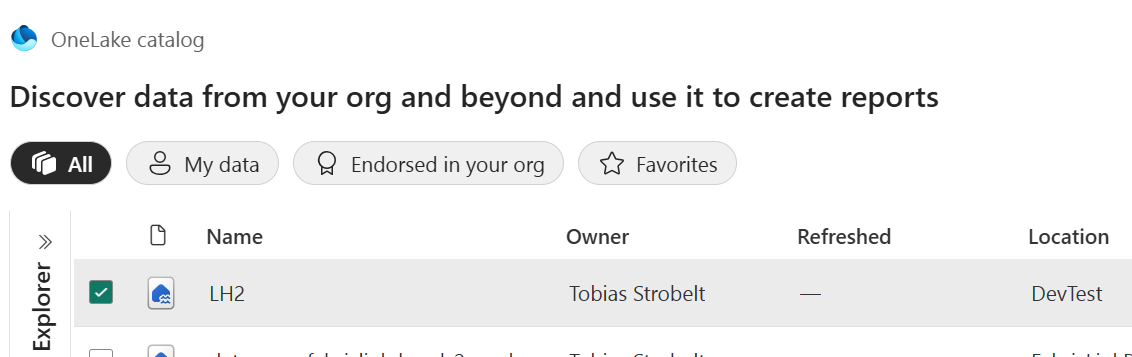
- Select “more” for the unassigned connections to WatermarkWarehouse and LH2 and choose corresponding items from OneLake catalog
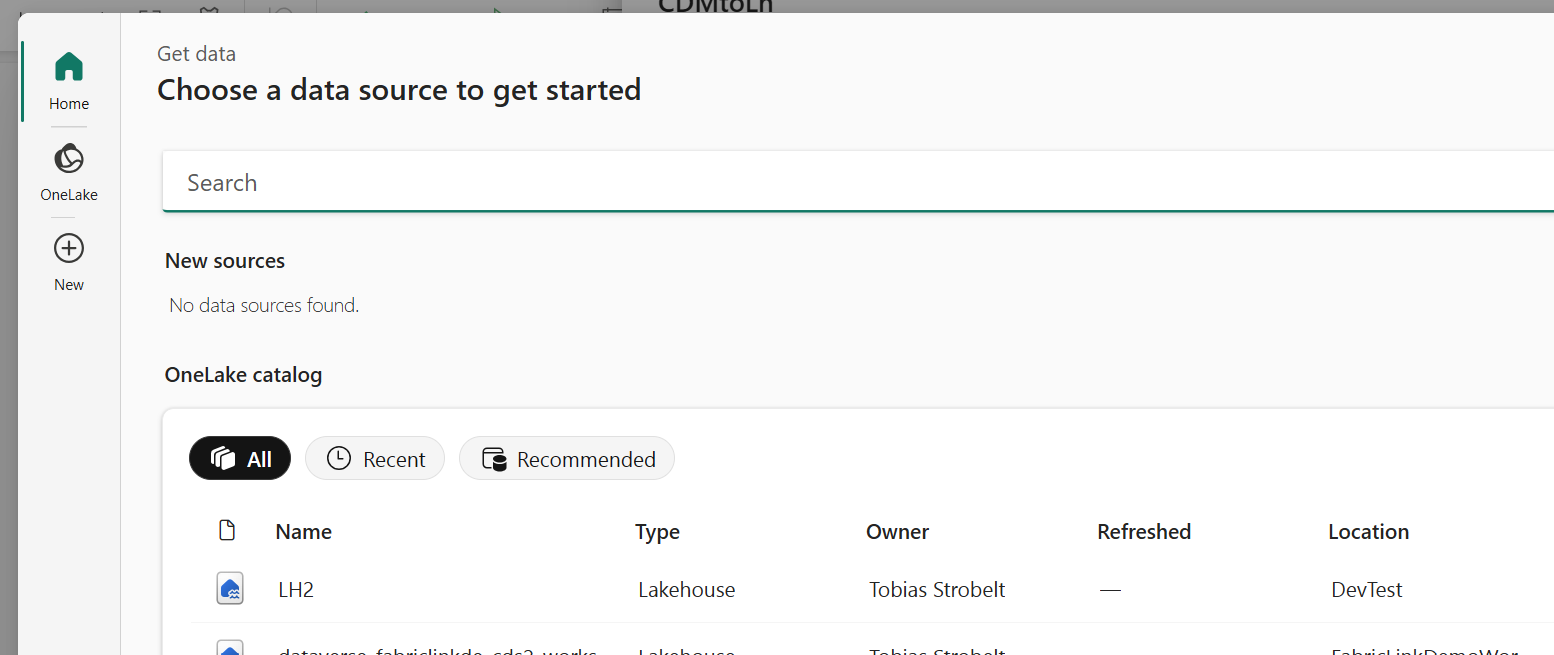
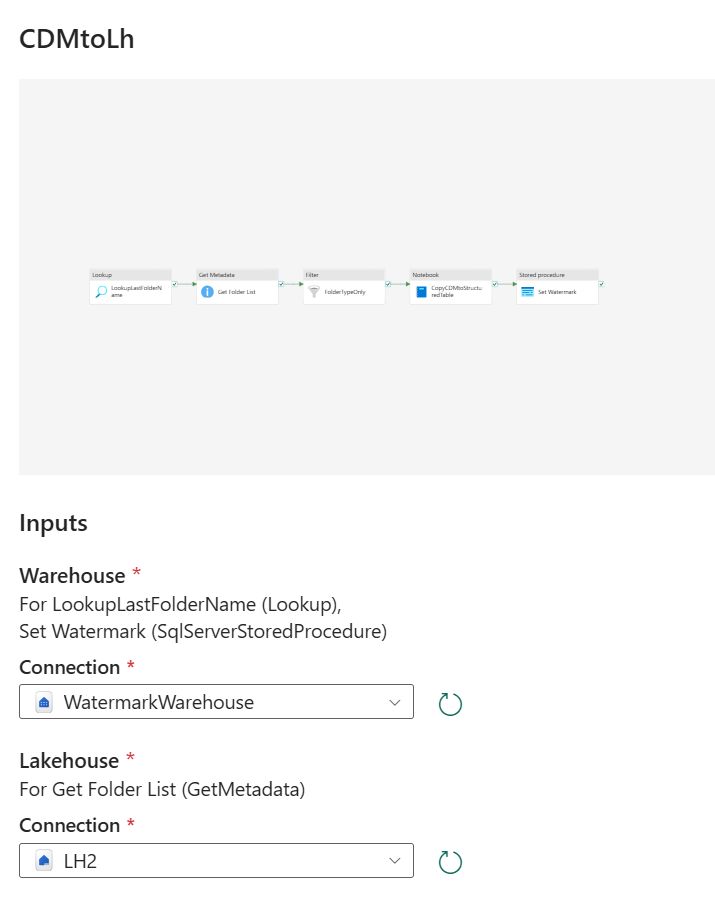
- Choose the template and verify the following settings and reassign if required. Save your pipeline afterwards.
- Proper “WatermarkWarehouse” including “watermarktable” (Lookup Activity) and “usp_write_watermark” (Stored Procedure Activity) are selected
- Proper ADLS Gen2 Shortcut Root File Path is selected in Get Metadata Activity (Choose Browse and “…” to select from root)
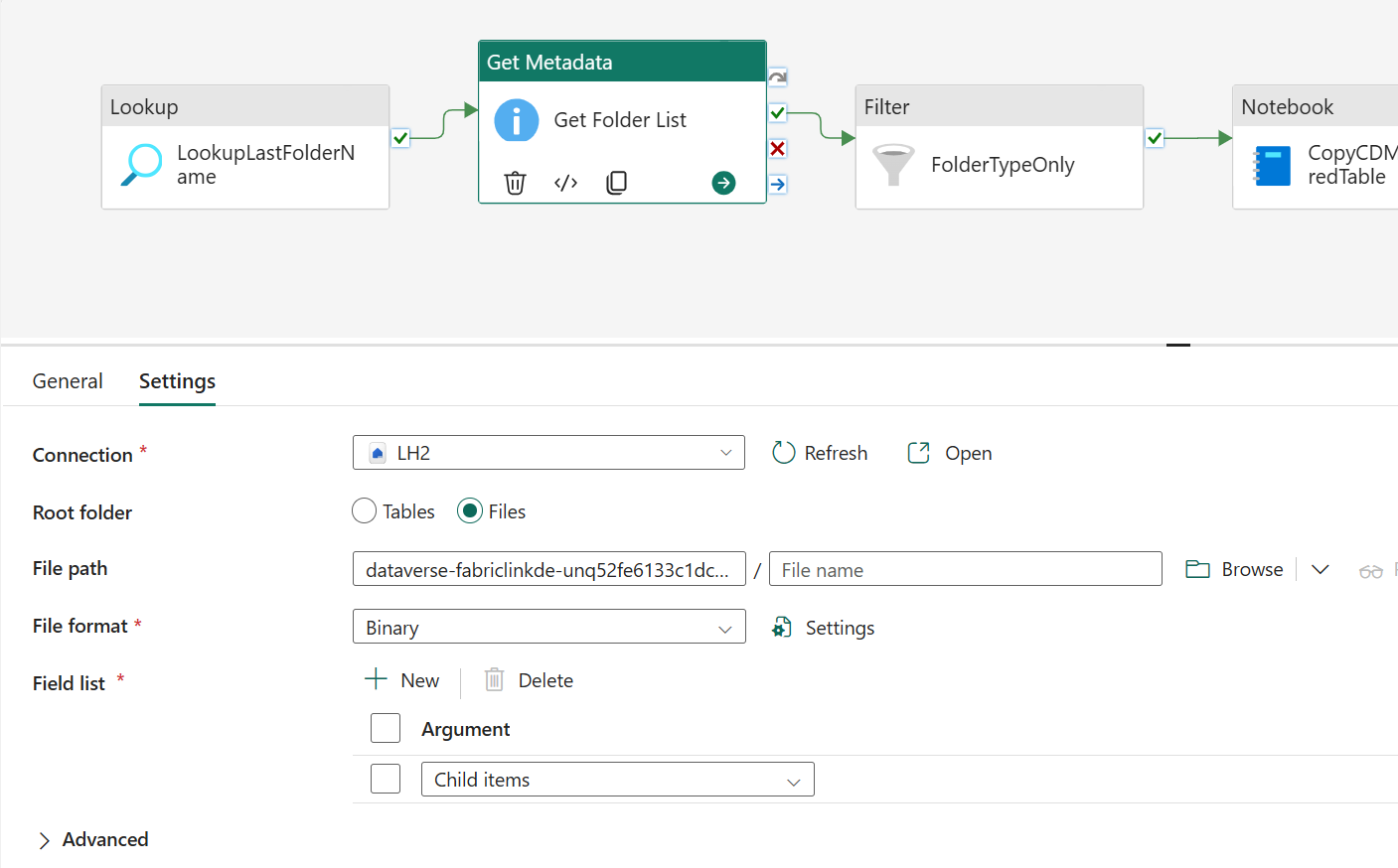
- Proper “CDMtoLh” Notebook is selected in the Notebook Activity
Run Initial Load
In order to get started, you can use the “InitCDMtoLh” Notebook to initially export specific tables towards LH2. This Notebook can be used at any time later on as well to extend you solution by new tables.
Start by opening the Notebook “InitCDMtoLh”, assign LH2 from Fabric Workspace as default Lakehouse and adjust the parameter cell:

- containerPath
File path to your Dataverse raw CSV files from ADLS Gen2 export through Azure Synapse Link
e.g. “Files/dataverse-m365devtstde-unq0815ABC12345678” - abfssPath
ABFSS Path to your LH2 Lakehouse
e.g. “abfss://DataversePoC@onelake.dfs.fabric.microsoft.com/LH2.Lakehouse” - tablename
Table name for the Dataverse table to initially load into LH2 Lakehouse
e.g. “account”
Attach Spark Session and run the all Notebook cells. If an error message appears that the environment cannot be found, reassign proper environment first.
The table name specified in the parameter cell should now be created as Delta Parquet table in LH2 ready for silver/gold transformation
Run Incremental Load
Start by opening the Notebook “CDMtoLh” and validating / adjusting the parameter cell if required:

- arrFolderNames
Json array containing name and type fields as folder list to loop through and process incrementally. Quote chars (“) need to be escaped by backslash (\) for proper recognition. This parameter is received by “CDMtoLh” pipeline identifying new folder list since last run through watermark table
e.g. [{\”name\”:\”2025-01-10T06.31.14Z\”,\”type\”:\”Folder\”},{\”name\”:\”2025-01-11T06.36.24Z\”,\”type\”:\”Folder\”}] - containerPath
File path to your Dataverse raw CSV files from ADLS Gen2 export through Azure Synapse Link
e.g. “Files/dataverse-m365devtstde-unq0815ABC12345678” - abfssPath
ABFSS Path to your LH2 Lakehouse
e.g. “abfss://DataversePoC@onelake.dfs.fabric.microsoft.com/LH2.Lakehouse”
Open Pipeline “CDMtoLh” and run pipeline manually.
If everything works fine you can schedule the pipeline to run every 10 minutes to ensure data updates within ~15min.
Ensure Spark Session stays alive
In order to decrease runtime of above “CDMtoLh” pipeline you can avoid creation of a new Spark session every time the pipeline runs. Therefore you can leverage the “SparkSessionKeepAlive” pipeline which creates/attaches a Spark Session with a specific Session Tag (“CopyCDMtoStructuredTableSession“). 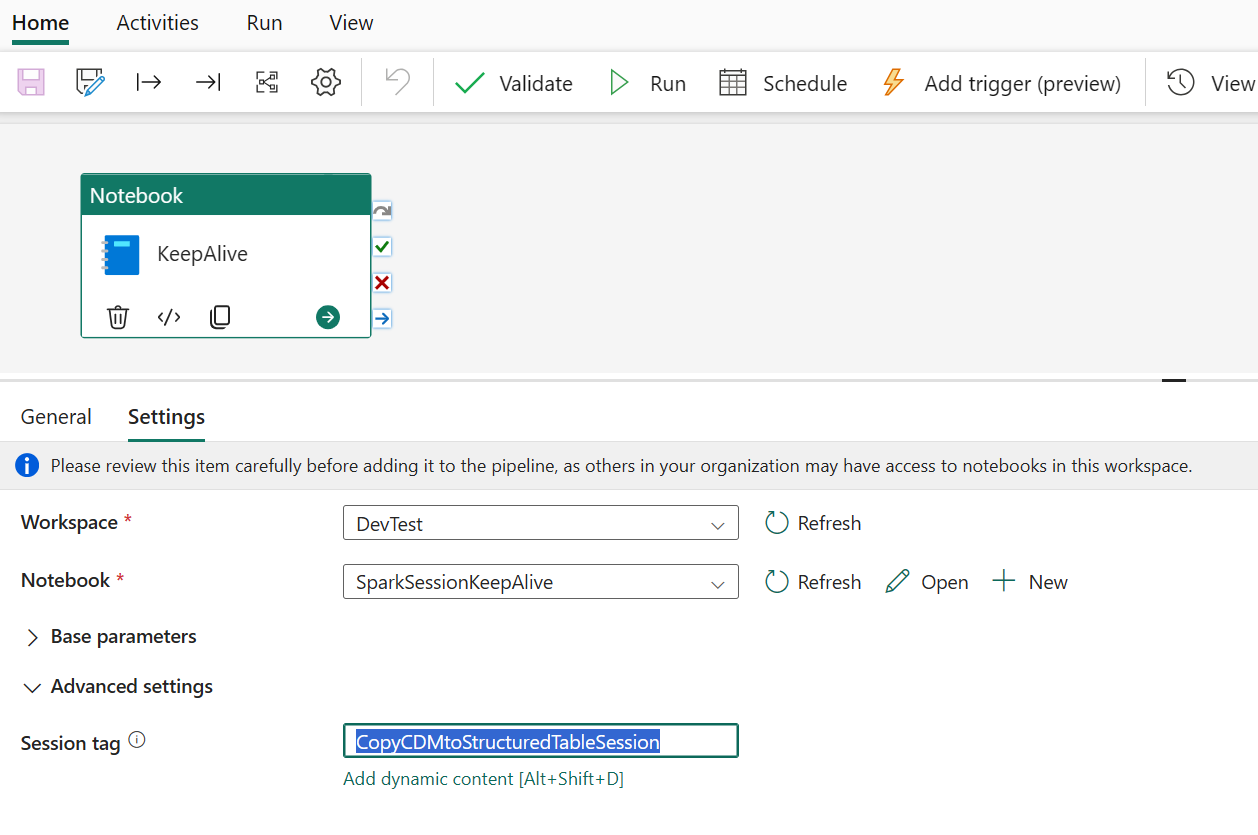
The same Session is being used in the “CDMtoLh” pipeline aswell for running the “CDMtoLh” Notebook. Rescheduling this pipeline to run on every minute ensures the session stays active and alive for the other pipelines aswell. In order to use this HC session, you need to enable High Concurrency for Spark notebooks in your workspace settings first.
Conclusion
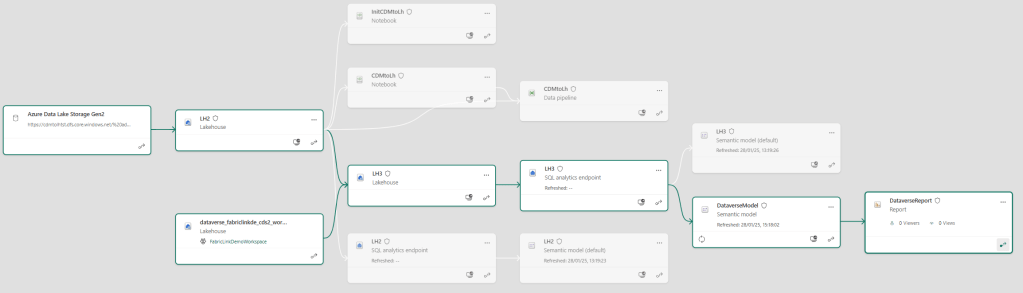
This template allows you to initially and frequently export Dataverse tables to Fabric and shortcut those into analytics ready Lakehouse delta parquet tables with a recurring frequency under 15min. To ensure usage of both options, you can now shortcut both delta parquet tables from LH1 (your Dataverse LH) and LH2 (used above) into a common LH3 to build semantic models on top of this layer.
Links and Sources
msftnerds/CDMtoLakehouse
Dynamics-365-FastTrack-Implementation-Assets/Analytics/DataverseLink at master · microsoft/Dynamics-365-FastTrack-Implementation-Assets
https://learn.microsoft.com/en-us/dynamics365/fin-ops-core/dev-itpro/data-entities/finance-data-azure-data-lake
https://learn.microsoft.com/en-us/power-apps/maker/data-platform/azure-synapse-link-transition-from-fno
Special Thanks and shoutout to the following peers for reference, template and inspiration:
https://aventius.co.uk/2024/03/28/microsoft-fabric-using-pyspark-to-dynamically-merge-data-into-many-tables/
https://www.linkedin.com/pulse/fabric-lakehouse-merge-operation-schema-evolution-raju-kumar
https://medium.com/@grega.hren/creating-reusable-spark-notebooks-in-microsoft-fabric-e632c1824808
 MSFTNERDS
Leave a comment